 Muhamad Taufik
#UI/UX
#Figma
#SaaS
#Design Process
Why I Build Every SaaS UI in Figma Before Writing a Single Line of Code
Skipping the design phase feels like it saves time — until you're halfway through implementation and realize the flow doesn't make sense. Here's my process for designing SaaS products end-to-end before touching the codebase.
Muhamad Taufik 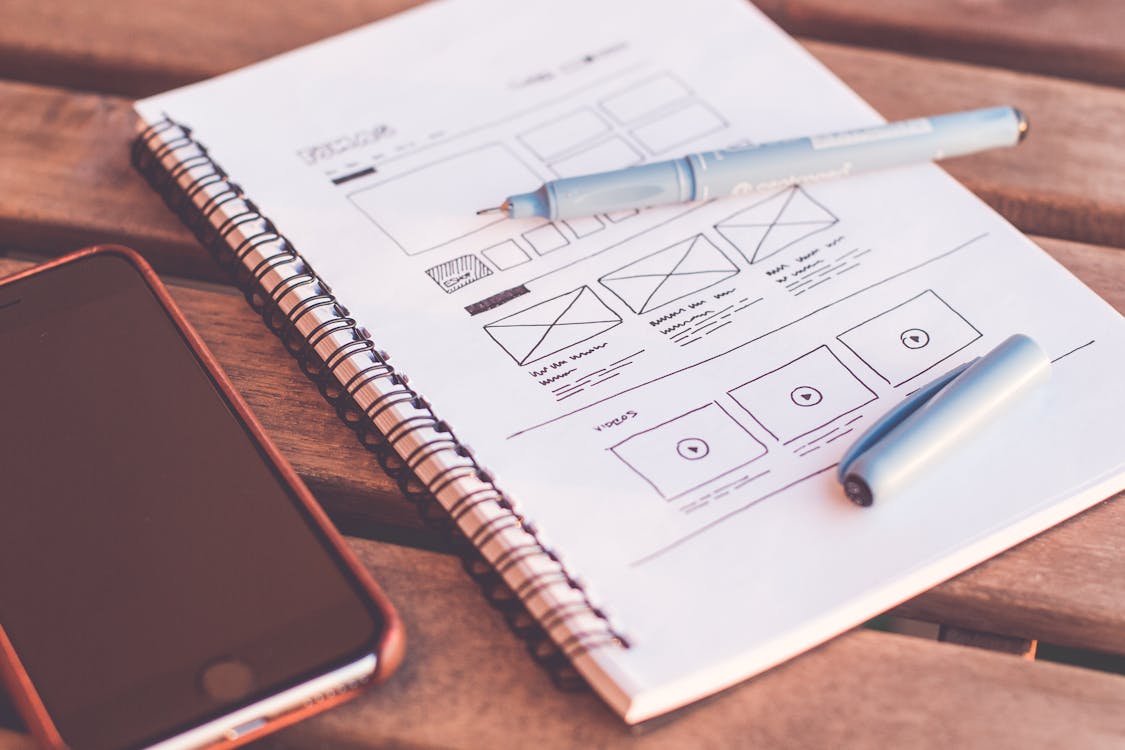
React:
One of the most expensive lessons I’ve ever learned: never start coding without a design.
Early in my career, I’d open VS Code the moment I received a requirement. The result? Frequent major refactors mid-project because the flow didn’t make sense to users.
Now, every SaaS project must go through Figma first — no matter how “simple” it seems.
Why Figma First?
1. Iterating in Figma is 10x faster than iterating in code
Changing a layout in Figma takes 30 seconds. Changing a layout that’s already been coded can take hours.
2. Finding UX problems before they become technical problems
While designing Socialchat, I discovered that the “assign chat to agent” flow initially required 5 steps. In Figma, I could experiment until it was down to 2 clicks — before a single line of code existed.
3. Presenting to clients/stakeholders is easier
Figma mockups can be shared via link. Clients can click around and give specific feedback.
My Process
Step 1: Information Architecture
Before creating any visuals, I list all the content on each page in simple text format:
Dashboard
├── Header (greeting, quick stats)
├── Active conversations (count, latest)
├── Pending tasks
└── Recent activity

Inbox
├── Channel filter (All, WhatsApp, Instagram...)
├── Conversation list (with search)
└── Chat panel (messages, reply box, agent assign)
Step 2: Low-fidelity Wireframe
Only then do I enter Figma, starting with a black-and-white wireframe. The focus is on layout and flow, not visuals.
Step 3: Design System First
Before designing pages, I first establish:
- Color tokens: primary, background, surface, text variants
- Typography scale: heading sizes, body, caption
- Component library: Button, Input, Card, Badge, Table
Colors:
  Primary: #4537D2
  Surface: #18181B
  Text: #FFFFFF
  Text Muted: #71717A

Typography:
  H1: 36px / 700 / -0.02em
  H2: 24px / 600
  Body: 14px / 400 / 1.6
  Caption: 12px / 400

Spacing: 4px base unit
  xs: 4px, sm: 8px, md: 16px, lg: 24px, xl: 32px
Step 4: High-fidelity Design
This is where the visuals get serious. I typically design:
- Default state
- Hover/focus state
- Empty state
- Error state
- Loading state
Step 5: Developer Handoff
Export to Dev Mode in Figma. Developers can directly inspect spacing, typography, and colors without needing to ask.
What Developers Often Forget
Empty states — what it looks like when there’s no data yet.
This is often skipped because “we’ll deal with it once we have data.” But new users always see the empty state when they first open the app.
Error states — what happens when the API fails?
❌ "Error 500"
✅ "Failed to load conversations. Try again?"
Loading states — skeleton or spinner?
Skeletons give the impression of a faster loading page because users can see that data is being loaded.
Conclusion
Investing time in Figma before coding always pays off. For the Socialchat project, design time in Figma saved an estimated 40% of implementation time because UX decisions were finalized before touching the code.
Loading comments...